

Views and filters
Every view can be shaped to the task at hand: as a list or a board, grouped by status or priority, filtered down to one label, or searched for a word in the title. The three buttons at the top right of a view hold these controls: board/list, Filter and Display.
List and board
Section titled “List and board”Press CtrlCommand B or click the board button to switch a view between list and board. The board has one column per status. Across several teams, statuses with the same name and kind share a column. Done and canceled columns start collapsed; click a column heading to expand or collapse it.
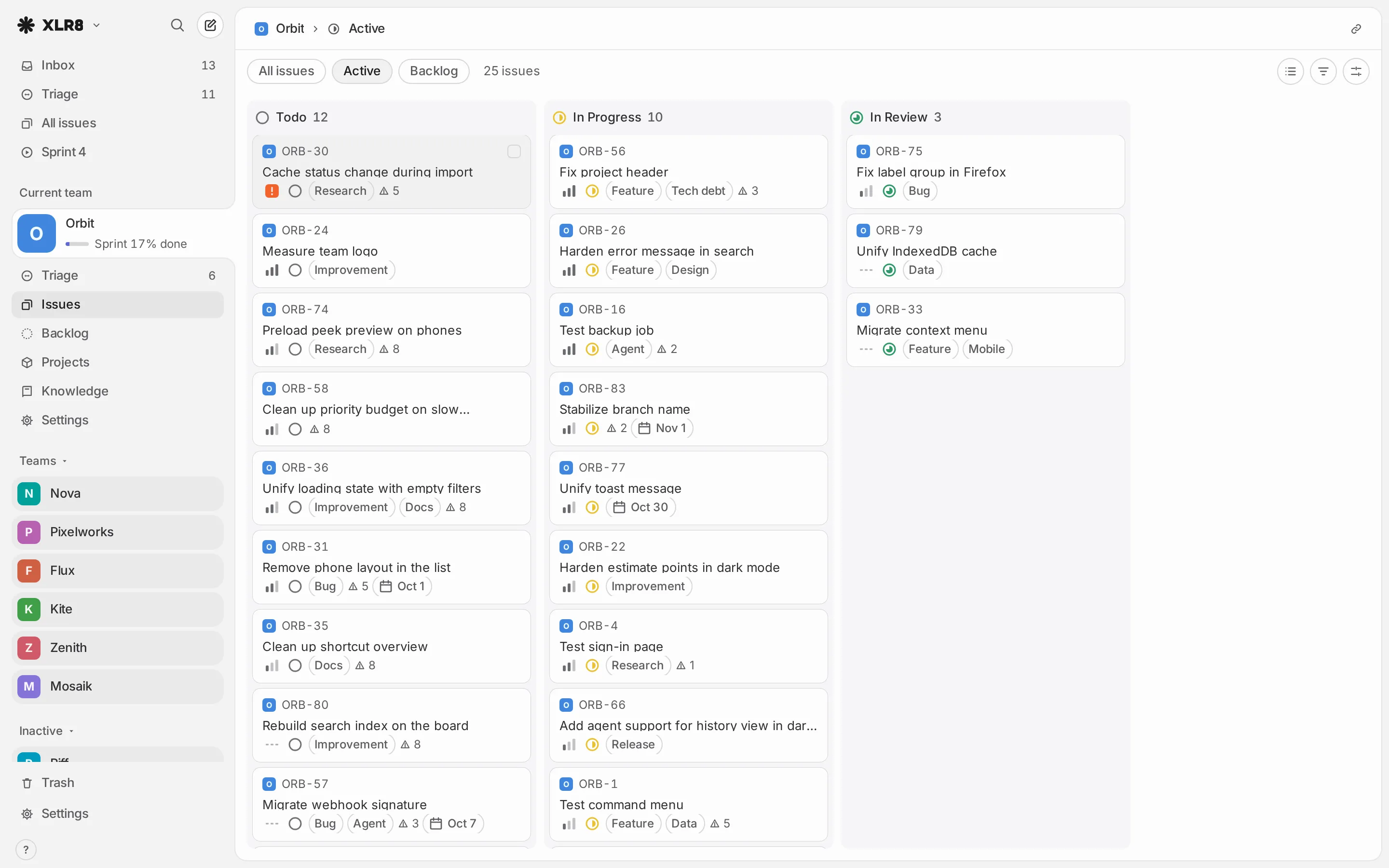
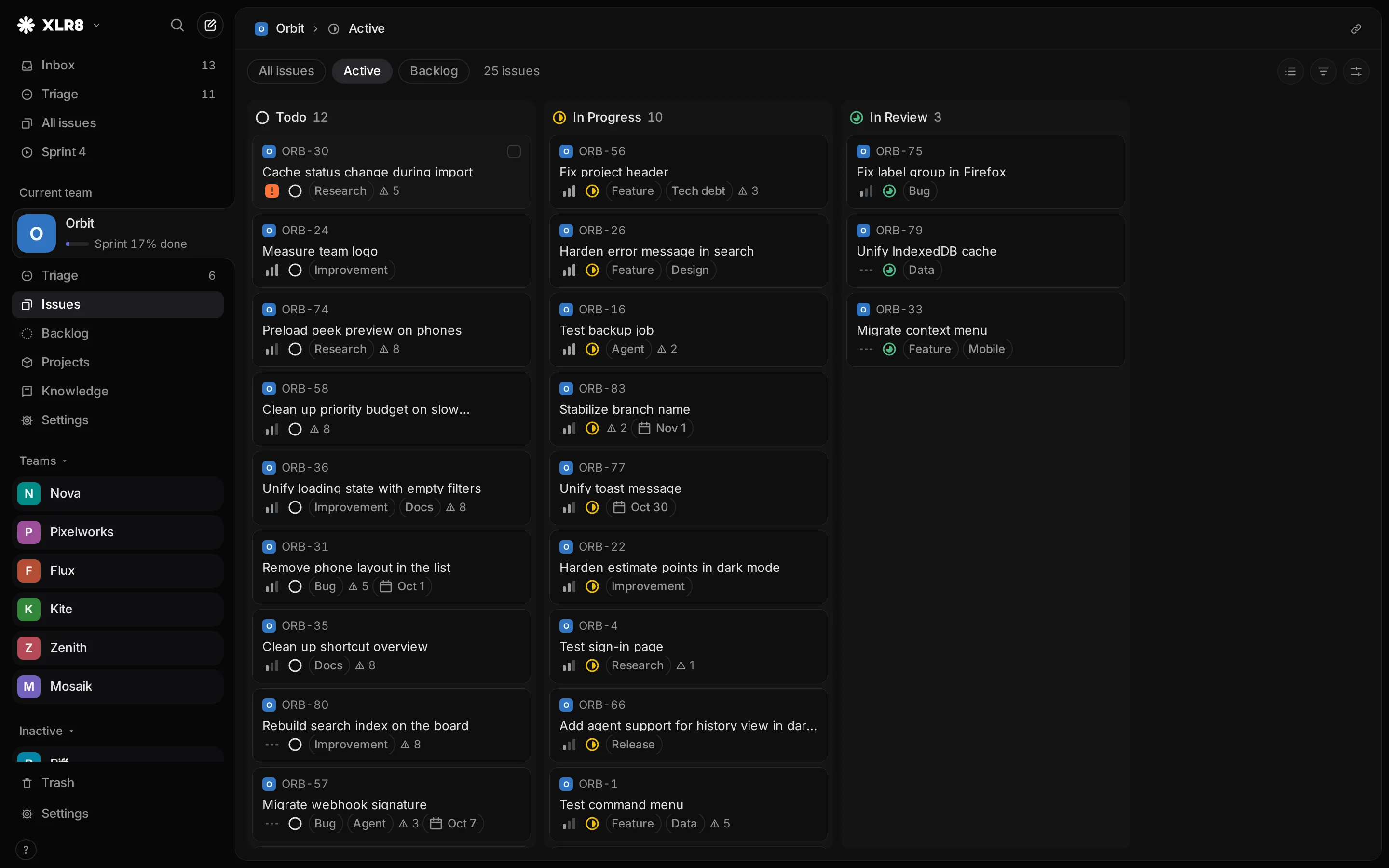
The board is available in All issues, Active, Backlog, Sprint and project views. Triage has no board, and the All issues board leaves out issues in Triage.
To move an issue to another status on the board:
- Drag the card into another column, or
- Press Shift Left arrow or Shift Right arrow to move the focused card (or all selected cards) one column to the left or right. This also works into a collapsed column.
Left arrow and Right arrow move the focus between columns, J and K within a column. If a team’s workflow does not allow a move, the column is marked while you drag and XLR8 tells you why.
Display options
Section titled “Display options”Press Shift V or click Display to open the display options:
- Grouping: by Status, Team, Priority, Project, Sprint, or None. The sprint view also offers Planned / added later. The available choices depend on the view.
- Ordering: by Priority, Manual, Last updated, Created, Due date, and in some views Status.
- Show completed: in views where done and canceled issues are relevant (All issues, Sprint, projects), this switch shows or hides them.
- Properties: which details each row shows, such as ID, status, labels, project, estimate or due date. Click a property to toggle it.
- Restore defaults resets everything to the view’s original setup.
A dot on the Display button means the view differs from its defaults. Display options are saved per view and per team in this browser, so the Backlog of one team can look different from another’s.
Collapsing groups
Section titled “Collapsing groups”Click a group heading, or press T to collapse or expand the group of the focused issue. Collapsed groups stay collapsed the next time you open the view.
Manual order
Section titled “Manual order”With the ordering set to Manual and the grouping to None, you decide the order yourself. Press AltOption Up arrow or AltOption Down arrow to move the focused issue up or down. The order is saved on the server, so a backlog sorted this way stays sorted on all your devices. The Backlog view uses manual order by default.
Filters
Section titled “Filters”Press F or click Filter to filter a view.
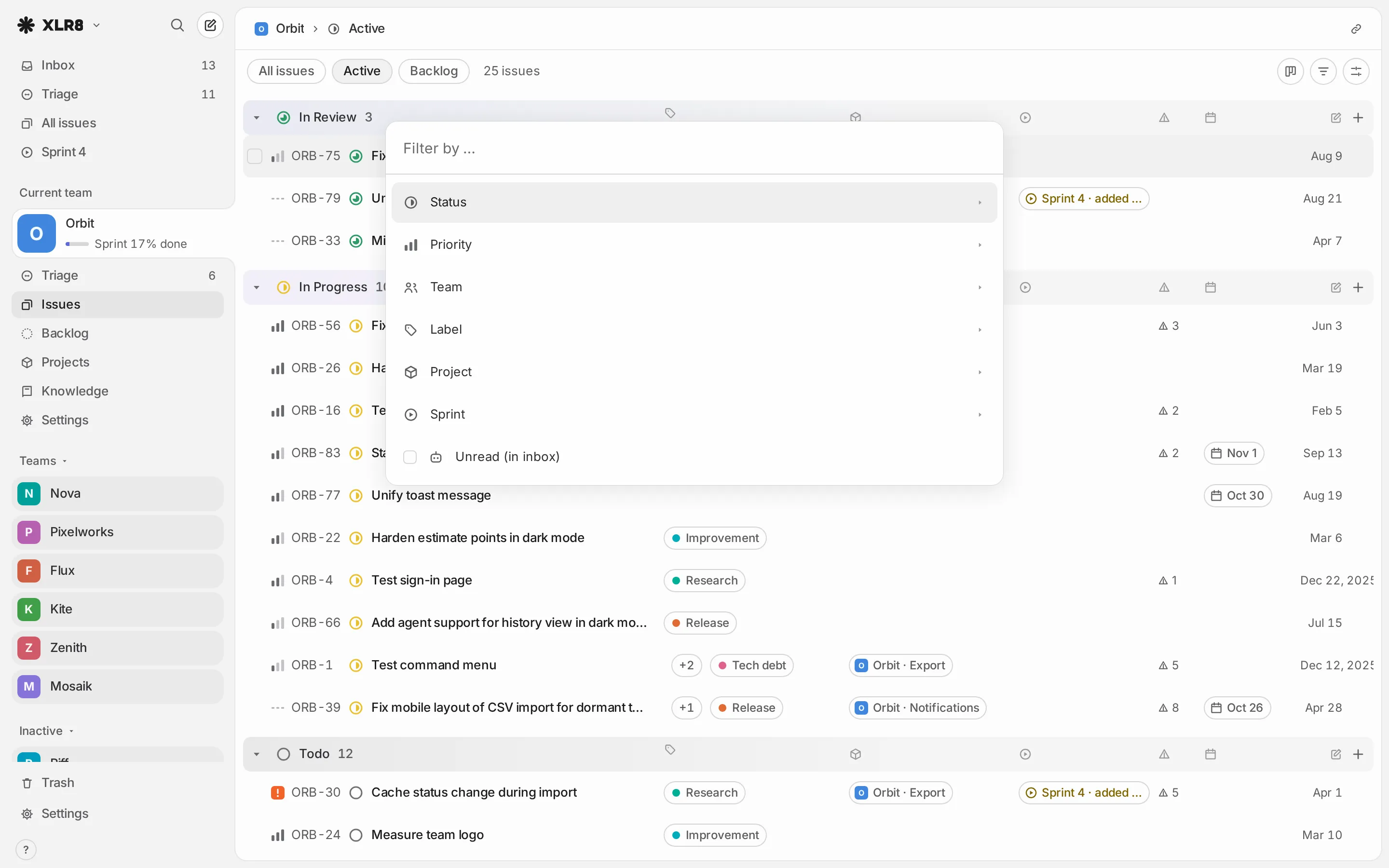
- Pick a field: Status, Priority, Team, Label, Project or Sprint.
- Check one or more values. The menu stays open, so you can check several.
- Press Esc to go back to the fields, and again to close.
You can also skip the first step: type right away, for example “urgent” or “bug”, and the menu lists matching values of all fields at once.
How filters combine: several values of one field mean “any of these” (Priority Urgent or High). Several fields mean “all of these” (Urgent or High, and label Bug). Project and Sprint also offer “No project” and “No sprint”. Unread (in inbox) shows only inbox entries you have not opened yet.
Active filters appear as chips below the header. Click the × on a chip to remove one, or Reset filters to remove all. Clear filters in the command menu does the same.
Filtering by a status also shows done and canceled issues of that status, even when Show completed is off.
Search in this view
Section titled “Search in this view”Press CtrlCommand F to filter the current view by text. A search field opens below the header; type words from the title or an ID. Every word must appear for an issue to stay.
- Enter or Down arrow jumps to the list and keeps the text, so you can work with the remaining issues.
- Esc clears the text and closes the field.
To search all issues, including descriptions and comments, use the issue search with / instead (see Command menu and search).
Sharing a view
Section titled “Sharing a view”Filters, the text search, grouping, ordering and the board layout are part of the page address. Copy it with the link button at the top right of the view, bookmark it, or send it to yourself on another device. Opening the link shows the view with the same filters, search, grouping, ordering and layout. Show completed and the visible properties are not part of the address; they come from the display options saved in the browser that opens the link.
Peek shows an issue without leaving the list. Press Space on a focused issue and a card with its properties and the start of its description appears at the top right.
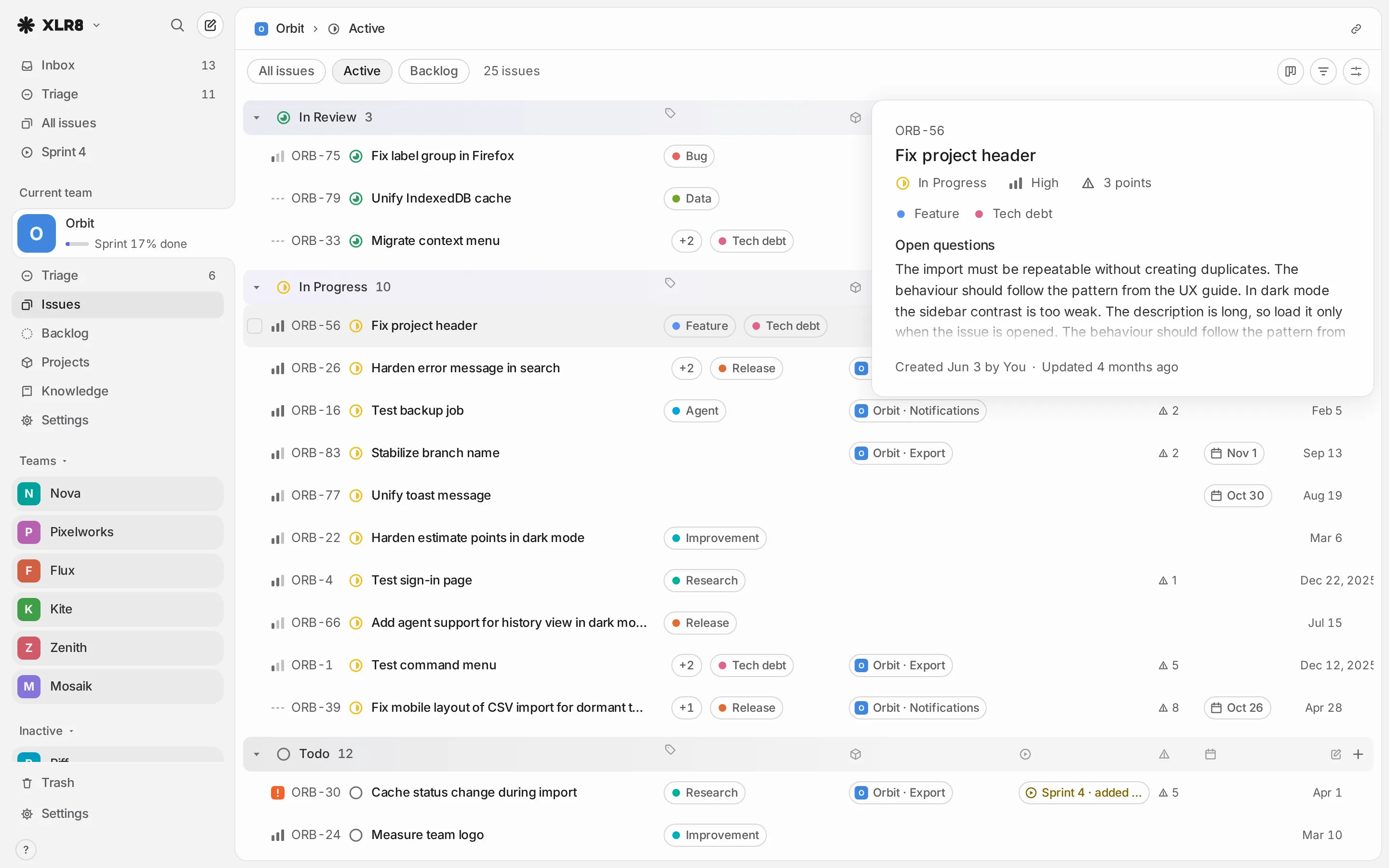
- While peek is open, J and K move through the list and the card follows.
- Press Space again or Esc to close it.
- Hold Space for a quick look: the card closes as soon as you let go.
Moving through results in the command menu or the issue search shows the same preview next to the results.