

Creating issues
Press C anywhere to open the create dialog, type a title, and press CtrlCommand Enter. That is the whole loop. The dialog fills in sensible defaults from where you are, and nothing you type is lost if you close it halfway.
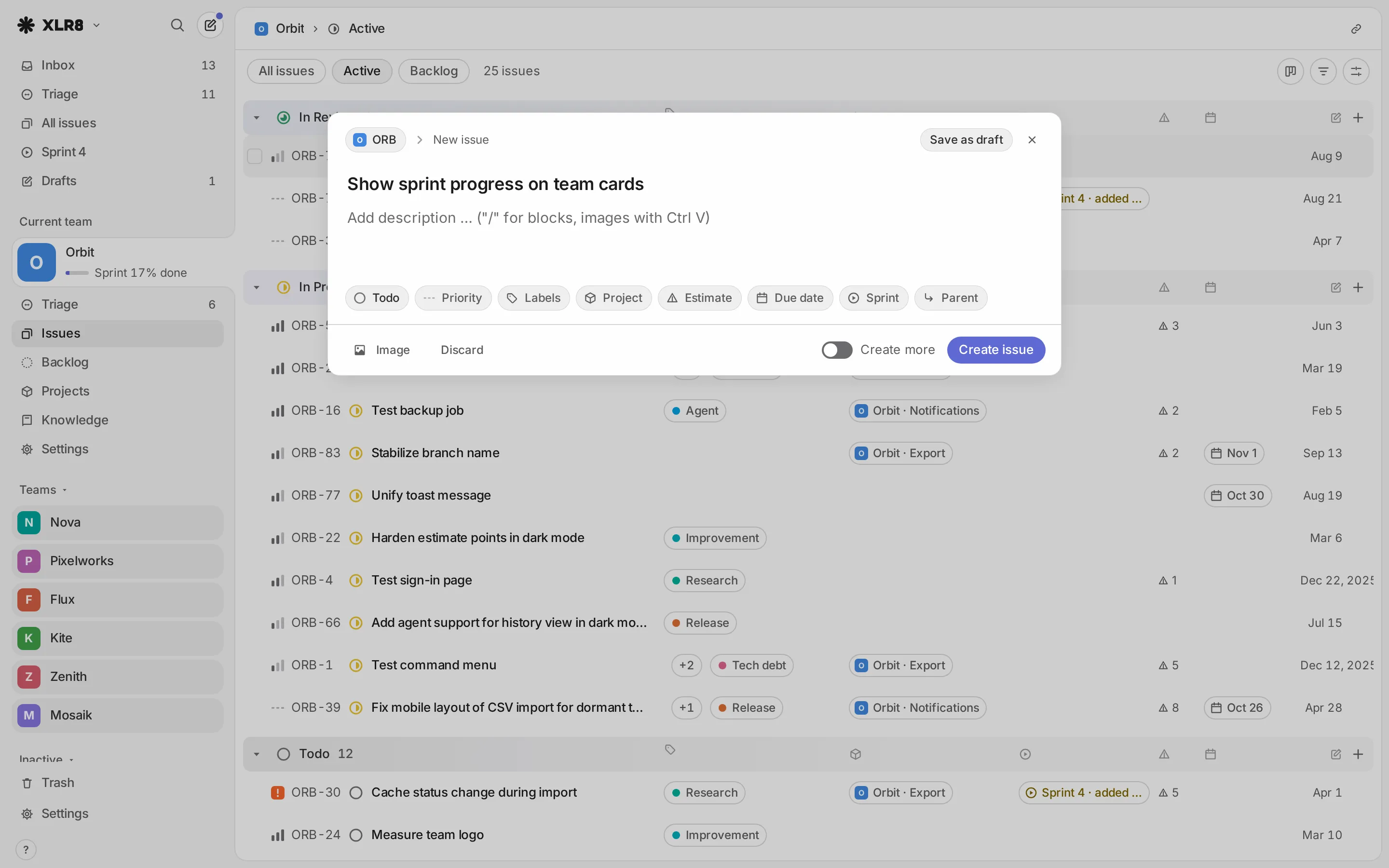
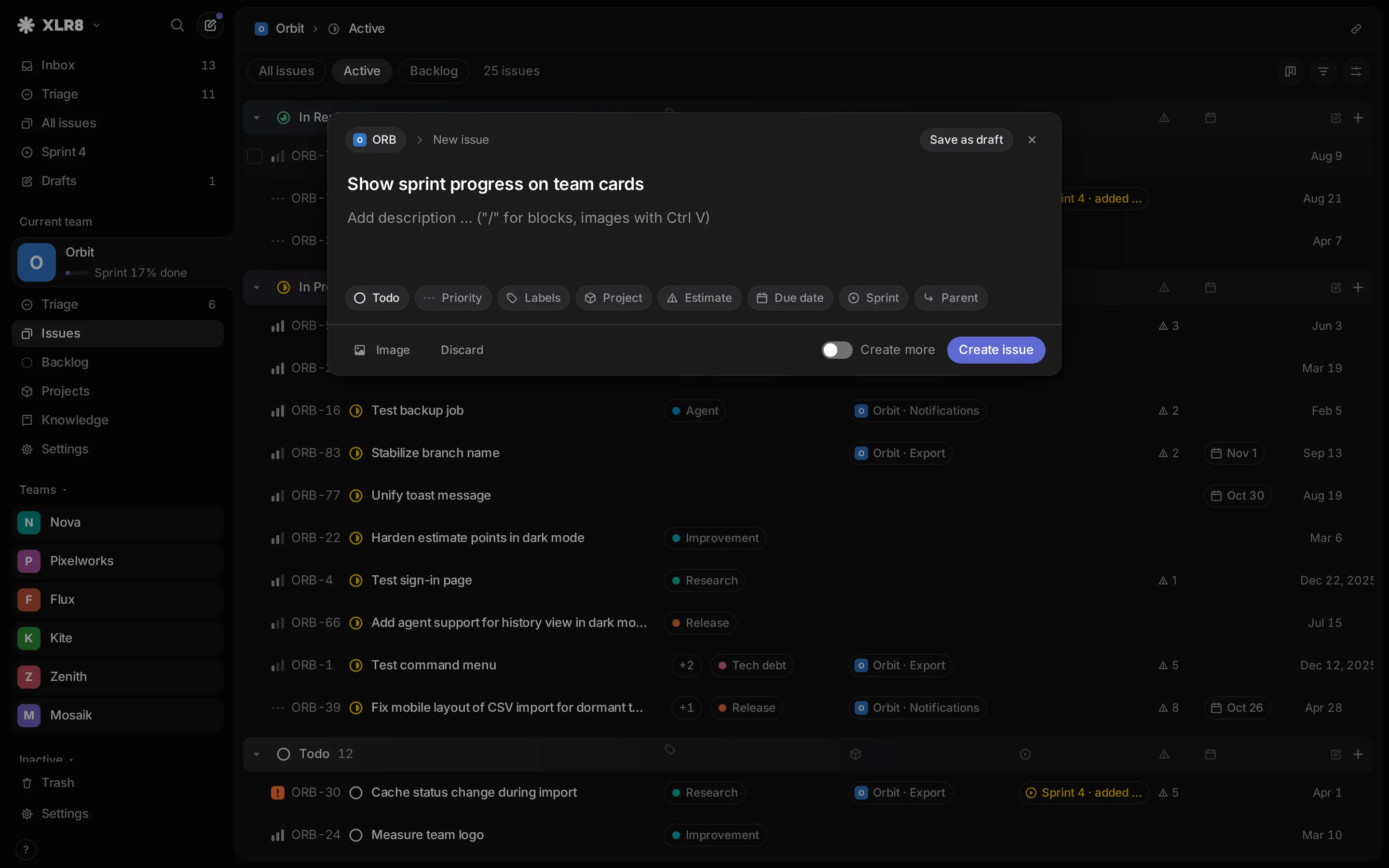
The create dialog
Section titled “The create dialog”The dialog has three parts:
- Title and description. Enter in the title moves to the description. The description is a full Markdown editor: type “/” for blocks, paste images with CtrlCommand V.
- Property chips below the text: status, priority, labels, project, estimate, due date, sprint and parent. Click a chip, or reach it with Tab and press Enter. Each opens the same picker you know from the command menu, including the digits for status and priority.
- The footer: Image to add a picture, Discard, the Create more switch and Create issue.
The team chip sits at the top left of the dialog. An issue needs a title and a team; everything else is optional.
Defaults from where you are
Section titled “Defaults from where you are”XLR8 fills in what fits the place you started from:
- In a team’s view or on one of its issues, the new issue goes to that team. Otherwise it goes to the team you created your last issue in.
- In Triage, the status is Triage. In Active, it is Todo. In Backlog, it is Backlog. In the sprint view, the issue is added to the running sprint.
- In a project, the project is set.
- If the view is filtered to one status, one priority, one project, one team or some labels, the new issue gets those values, so it shows up in the list you are looking at.
The + button on a group heading in a list creates an issue right in that group.
Creating
Section titled “Creating”| Keys | Effect |
|---|---|
| CtrlCommand Enter | create the issue and close the dialog |
| CtrlCommand Shift Enter | create the issue and keep the dialog open for the next one |
| Esc | close; any text is kept as a draft |
With CtrlCommand Shift Enter, title and description are cleared and all properties stay, so you can enter a series of similar issues quickly. The Create more switch in the footer does the same for the Create issue button.
After creating, the new issue is focused in the list. If it does not belong to the view you are in, a notice with Open appears instead. If you change your mind, CtrlCommand Z moves the new issue to the trash.
Drafts
Section titled “Drafts”You never have to decide between finishing an issue and losing it:
- Closing the dialog with Esc, the close button or a click outside keeps the content as a draft. Save as draft in the header does the same on purpose.
- If you navigate elsewhere while the dialog is open, it hides; press C to get it back with your text.
- Drafts survive reloads and closing the tab. They are stored in this browser only.
- If creating fails on the server, the issue comes back as a draft.
While you have drafts, Drafts appears in the sidebar with a count. The page lists each draft with Open and Delete. You also reach it from the command menu (“Go to: Drafts”).
Discard in the footer throws the content away without keeping a draft. The notice that follows has an Undo button in case you clicked it by mistake.
Sub-issues
Section titled “Sub-issues”To break an issue into smaller ones, focus or open it and press CtrlCommand Shift O (Create sub-issue). The dialog opens with the parent set, and takes over the parent’s team, project and sprint. The status starts at Todo.
To turn an existing issue into a sub-issue, use Set parent with CtrlCommand Shift P and pick the parent issue.
Creating issues from a link
Section titled “Creating issues from a link”The address /new opens the create dialog with values filled in from the query string. This is handy
for bookmarks, scripts or a button in another tool:
https://xlr8.example.com/new?title=Fix%20login&team=ACME&priority=high&status=todo&label=Bug&due=tomorrowSupported parameters: title, description, team (team key), status (status name), priority
(urgent, high, medium, low or 0–4), label (names, comma separated), project (name),
estimate and due (the same words as the due date picker, like tomorrow). The dialog opens for you
to check; nothing is created until you confirm.