

Triage and inbox
Agents can file issues as fast as they find problems. Two places keep that from flooding your backlog: Triage holds new issues until you decide what to do with them, and the Inbox shows you every issue an agent created until you have seen it.
They overlap but are not the same. Triage is a status: an issue is in triage until you give it another one. The inbox is a marker on the issue: you remove the entry once you’ve reviewed it, and the issue itself stays exactly as it is.
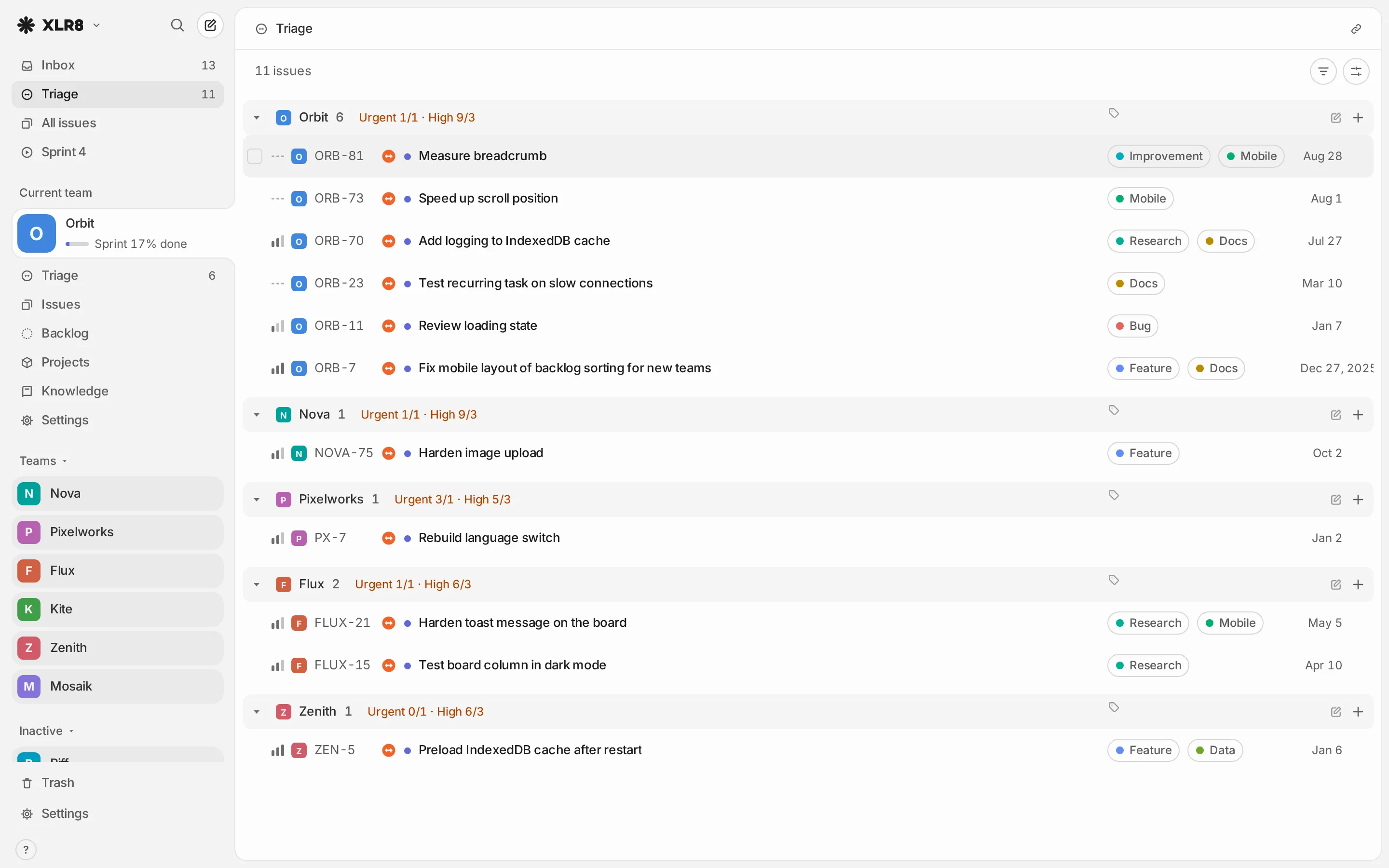
Triage
Section titled “Triage”Open triage with G then T (Go to: Triage). It shows the issues of all teams whose status is of type Triage, grouped by team. The sidebar shows a Triage link with a count under the current team while issues are waiting there.
Issues land in triage when:
- an agent creates them and does not set a status itself,
- you share a link or text to XLR8 from another app, with XLR8 installed as an app (the issue also lands in the inbox),
- you create them with the status Triage, for example with C in the triage view.
Accept, duplicate, decline
Section titled “Accept, duplicate, decline”Focus an issue in triage (or select several) and press a digit:
| Key | Action | What happens |
|---|---|---|
| 1 | Accept … | Pick a status under Accept as (a Backlog, Unstarted or Started status), or Accept into another team. Accepting into another team moves the issue there with the status Backlog. |
| 2 | Mark as duplicate … | Pick the original issue. This one gets the status Duplicate and a “duplicate of” relation. |
| 3 | Decline | The issue gets the status Canceled. |
All three also mark the issue as read in the inbox. If the team uses a fixed order, Accept as only offers the statuses that are allowed.
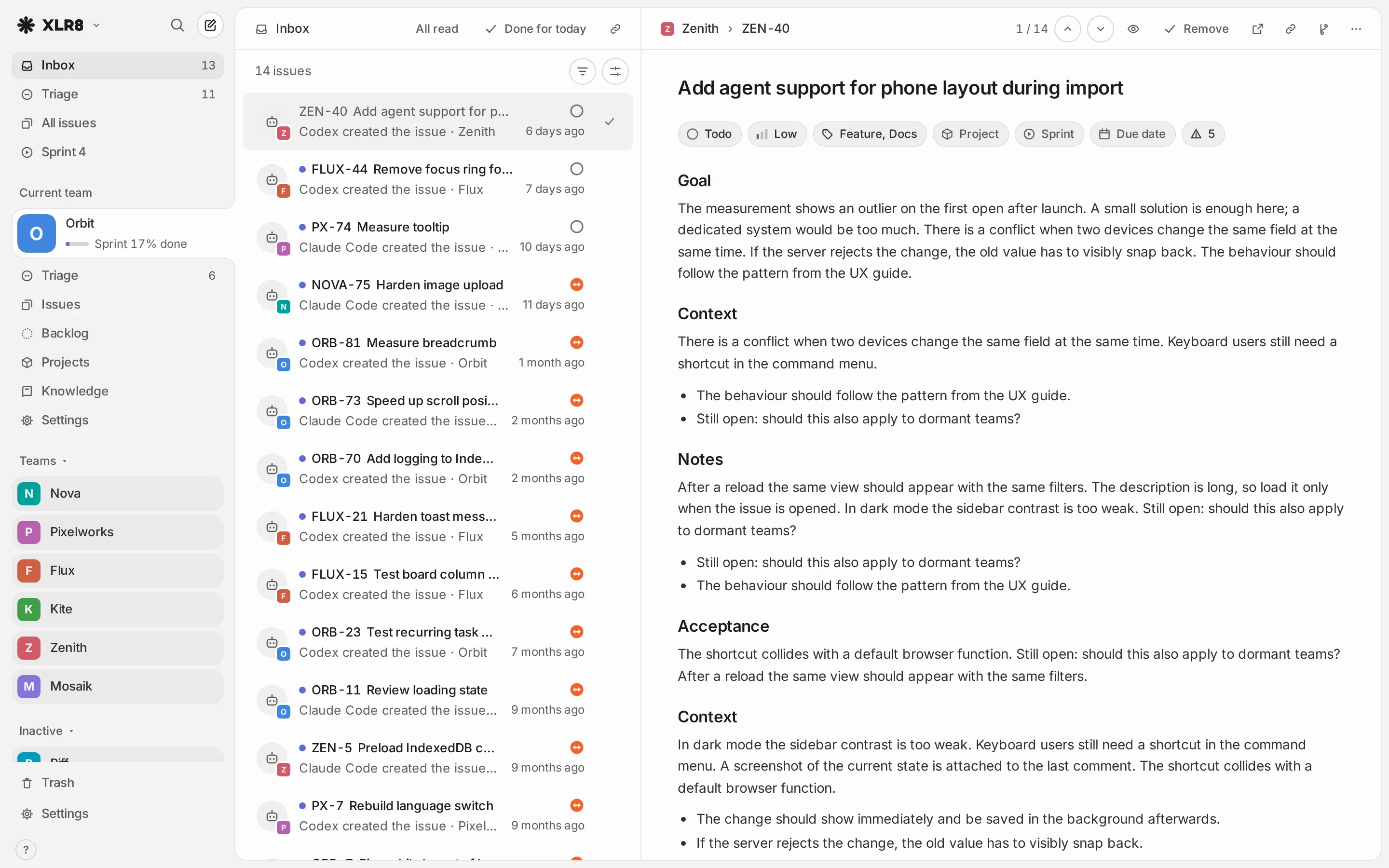
Open the inbox with G then I (Go to: Inbox). It lists every issue created by an agent until you remove the entry. Issues you create yourself and imported issues never appear here. Issues shared from another app do.
Each entry is either unread (with a dot) or read. Opening the issue marks it read. The count in the sidebar shows the unread entries.
On a wide screen the inbox is split in two: the list on the left and the full, editable issue on the right. Move through the list with J or Down arrow and K or Up arrow; the right side follows and marks the entry read after a short moment. Enter opens the issue as its own page, Esc closes the right side.
Work through the inbox
Section titled “Work through the inbox”| Action | Shortcut |
|---|---|
| Remove from inbox | BackspaceDelete or Del or E |
| Mark as read / Mark as unread | U |
| Mark all as read | AltOption U |
| Remove read entries from inbox | Shift BackspaceDelete or Shift Del |
| Done for today: clear inbox | button Done for today in the header |
Removing an entry only takes it out of the inbox. The issue keeps its status, priority and everything else. “All” in these actions means all entries in the current view, so a filter narrows them down. Every inbox action can be undone with CtrlCommand Z.
The triage keys 1, 2 and 3 work in the inbox too, so you can accept or decline an agent’s issue right where you review it.
Find unreviewed issues elsewhere
Section titled “Find unreviewed issues elsewhere”In any list, the filter (F) has the option Unread (in inbox). It narrows the view to issues that are still unread in your inbox, for example to see which issues in the current sprint an agent added that you have not looked at yet.