

Connect an agent
There are two ways in. Coding agents and other MCP clients you configure yourself use a key. Claude (claude.ai, desktop, mobile) and ChatGPT cannot send a key, so they connect as a custom connector and sign in through OAuth. Both end up as an entry under Settings → Agents.
The MCP address
Section titled “The MCP address”The server lives at /mcp on your backend’s HTTP address:
| Setup | MCP address |
|---|---|
| Convex Cloud | https://<deployment>.convex.site/mcp, for example https://happy-otter-123.convex.site/mcp |
| Custom address | for example https://mcp.xlr8.example.com/mcp (see Use your own MCP address) |
Local (pnpm dev) |
http://127.0.0.1:13411/mcp |
You don’t have to work it out: Settings → Agents shows the address at the top of the page.
Connect a coding agent with a key
Section titled “Connect a coding agent with a key”Create a key
Section titled “Create a key”- Open Settings → Agents (or search for “Settings: Agents” in the command menu).
- Click Create key, enter an Agent name such as “Claude Code”, and click Generate.
- Copy the key from the dialog. It starts with
xlr8_followed by 43 characters, for examplexlr8_3qZ…. The dialog also offers a ready-made command for Claude Code. - Click Done.
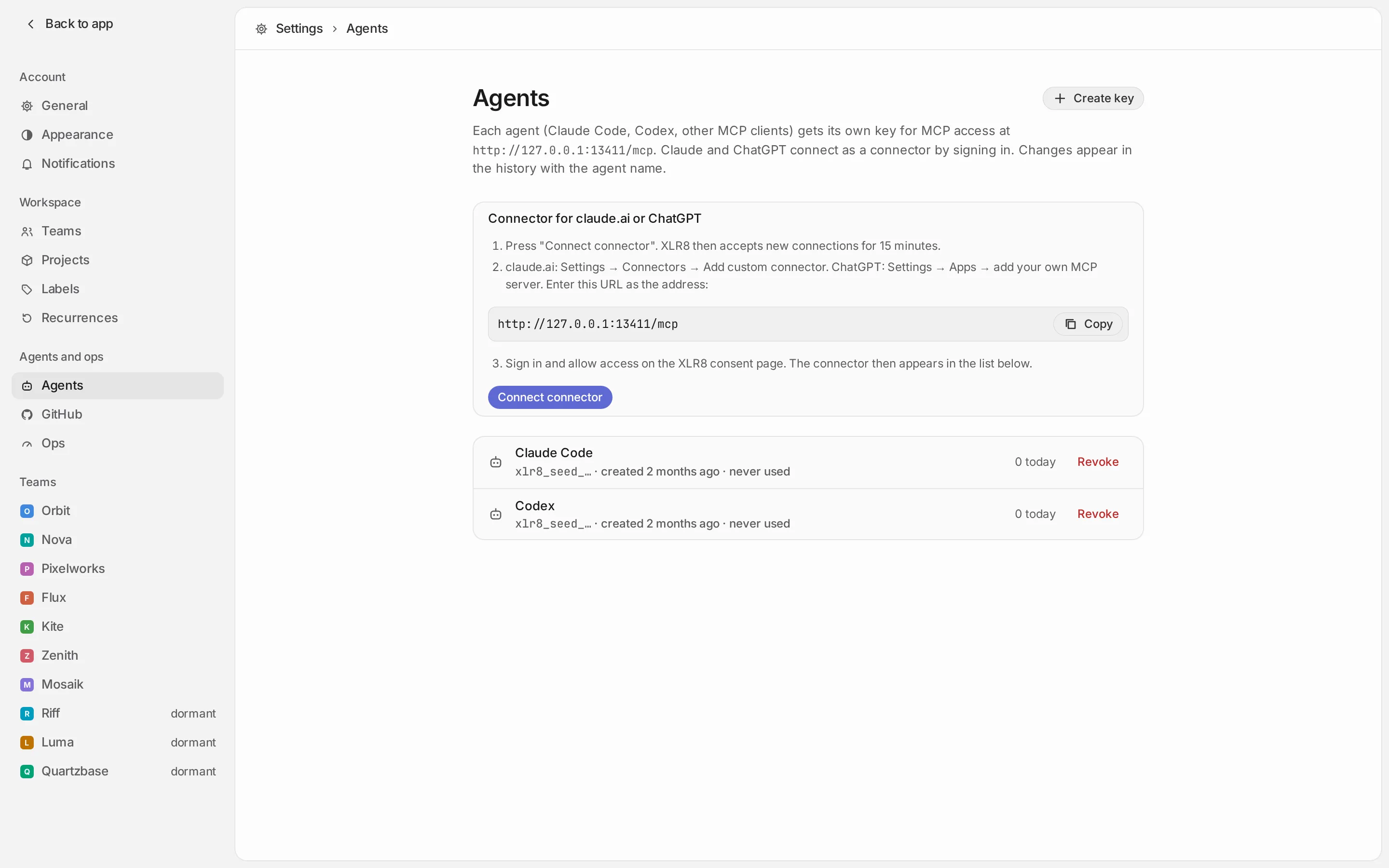
The list shows each agent with the first characters of its key, when it was created and last used, and how many calls it made today.
Add XLR8 to your client
Section titled “Add XLR8 to your client”Every client sends the key in an Authorization: Bearer <key> header to the MCP address. Replace the
address and key in these examples with yours.
claude mcp add --transport http xlr8 https://happy-otter-123.convex.site/mcp \ --header "Authorization: Bearer xlr8_…"Add --scope user to make XLR8 available in all your projects. In Claude Code, /mcp should list
“xlr8” as connected.
In ~/.codex/config.toml:
[mcp_servers.xlr8]url = "https://happy-otter-123.convex.site/mcp"bearer_token_env_var = "XLR8_MCP_KEY"Then provide the key in the environment variable XLR8_MCP_KEY. The exact syntax depends on your Codex
version; codex mcp --help shows it.
Most clients that support remote MCP servers over HTTP (Cursor’s mcp.json, for example) accept a
configuration like this:
{ "mcpServers": { "xlr8": { "url": "https://happy-otter-123.convex.site/mcp", "headers": { "Authorization": "Bearer xlr8_…" } } }}Field names differ between clients; check your client’s documentation for “remote” or “HTTP” MCP servers with custom headers. The transport is Streamable HTTP.
Don’t commit a configuration file that contains the key. If your client can read the key from an environment variable, use that.
Test the connection
Section titled “Test the connection”Ask your agent something like “List my XLR8 teams”. If you have the XLR8 repository checked out and
installed (pnpm install), you can also test from the command line:
XLR8_MCP_KEY=xlr8_… node backend/scripts/mcp-smoke.ts --url https://happy-otter-123.convex.site/mcpIt prints the server name, the protocol version, the tools and whether one read call (list_teams)
succeeded, without printing any of your data. Pass the key
through the environment, never as an argument, so it doesn’t show up in the process list.
Revoke a key
Section titled “Revoke a key”In Settings → Agents, click Revoke next to the agent and confirm with Revoke for good. The key stops working with the next call. Revoking cannot be undone: to give the agent access again, create a new key. The revoked entry stays in the list, so the history still shows which agent made a change.
Connect Claude or ChatGPT as a connector
Section titled “Connect Claude or ChatGPT as a connector”Turn on connectors
Section titled “Turn on connectors”Connectors need the backend environment variable XLR8_APP_URL, set to the address of your XLR8 app (for
example https://xlr8.example.com). The sign-in and consent page lives there. Without it, the connector
card in Settings → Agents says it is not enabled. Setting environment variables is covered in
Self-hosting: Convex. Once it is set, https://<deployment>.convex.site/health
reports "oauth": true.
Connect
Section titled “Connect”-
In XLR8, open Settings → Agents and click Connect connector. For the next 15 minutes XLR8 accepts new connections; the card shows a countdown and the address to copy.
-
In claude.ai or ChatGPT (in the browser), add a custom connector and enter the address from the card, for example
https://happy-otter-123.convex.site/mcp. Name it “XLR8”.- claude.ai: in the connector settings, add a custom connector. Leave the advanced OAuth fields (client ID and secret) empty.
- ChatGPT: in the settings for apps or connectors, add your own MCP server with OAuth authentication. You may need to turn on developer mode first.
The menus of both products change from time to time; look for “custom connector” or “MCP server”.
-
A window opens with the XLR8 sign-in (if you aren’t signed in) and the consent page Connect … to XLR8?. Check that the app and the Returns to address (claude.ai, claude.com or chatgpt.com) are what you expect. Adjust the Name in the history if you like, then click Allow.
-
The window returns to Claude or ChatGPT and the XLR8 tools appear. In XLR8 the connector shows up in the list as “Connector · claude.ai” or “Connector · ChatGPT”.
The first approval closes the 15-minute window again. For another connection, click Connect connector again. On mobile, the connector is available once you have connected it on the web.
Stay connected, revoke, reconnect
Section titled “Stay connected, revoke, reconnect”- Sessions renew themselves: the client refreshes its access every hour, and a connection stays valid as long as it is used at least every 30 days.
- To cut a connector off, click Revoke next to it in Settings → Agents. It loses access at once. To use it again, disconnect and reconnect it in Claude or ChatGPT (after clicking Connect connector). That creates a new entry; the old one stays revoked.
- If the list shows a connector as revoked with “Code used twice” or “Refresh token used twice”, XLR8 detected a sign-in credential being reused and revoked the connector as a precaution. Reconnect it.
- “Disconnected by the app” means Claude or ChatGPT ended the connection itself.
Use your own MCP address
Section titled “Use your own MCP address”The Convex address works as it is. A custom address such as https://mcp.xlr8.example.com/mcp is optional
and gives connectors a stable, readable address. It works through your static host, which forwards all
requests for that host to Convex:
- Add the host to
mcpHostsin your instance settings (deploy/instance.json), for example["mcp.xlr8.example.com"], and deploy the web app again withnode tooling/deploy-web.mjs. The deploy writes the forwarding rule for the host (a rewrite in the Vercel configuration). - Point the host’s DNS (a CNAME record) at your static host.
- Set the backend environment variable
XLR8_PUBLIC_SITE_URLtohttps://mcp.xlr8.example.com.
To check, open https://mcp.xlr8.example.com/.well-known/oauth-protected-resource/mcp: it should show
"resource":"https://mcp.xlr8.example.com/mcp".
XLR8_PUBLIC_SITE_URL names exactly one address, and that address is part of every connector’s identity.
If you change it later, reconnect your connectors. Agents with a key can keep using either address.