

Command menu and search
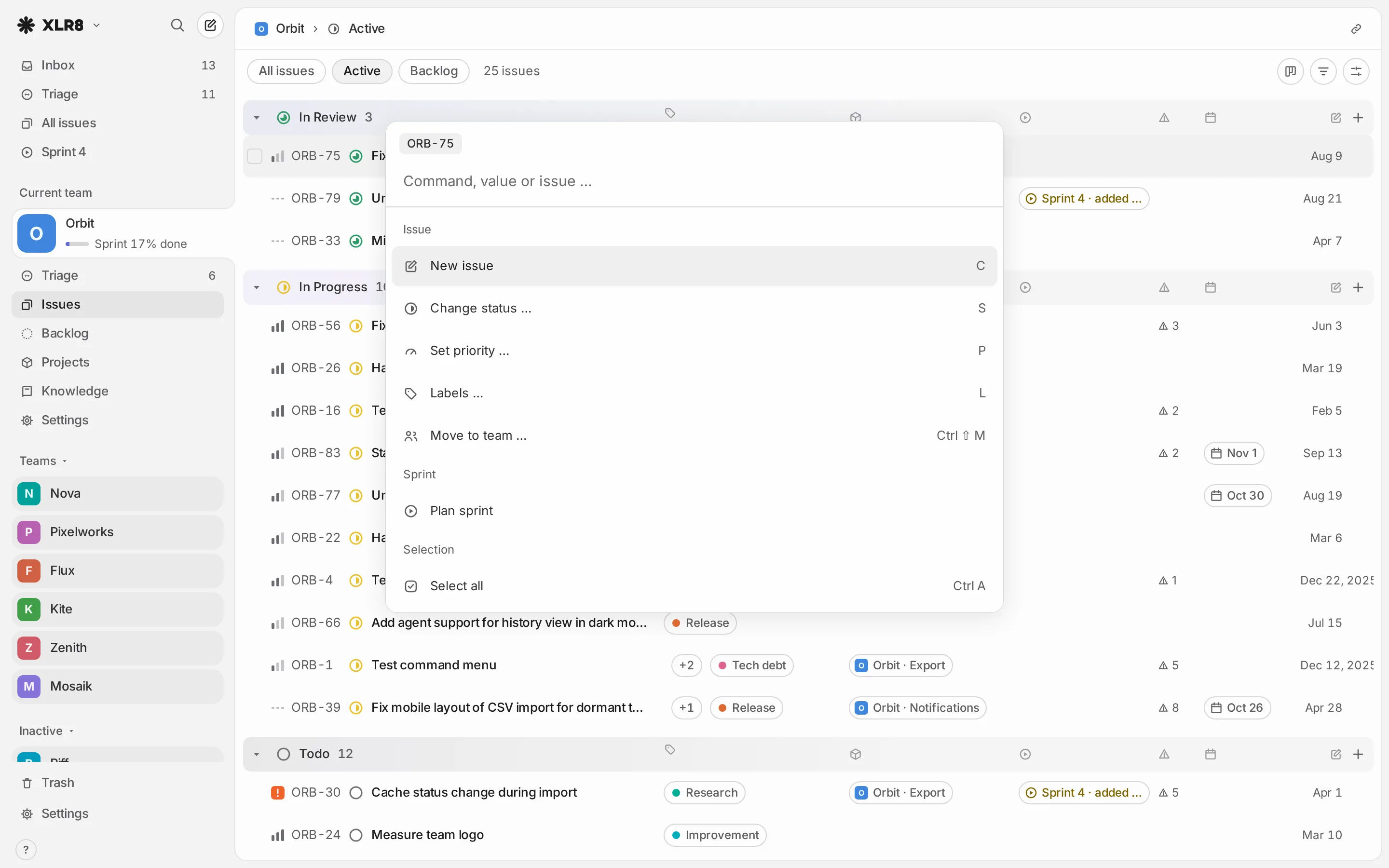
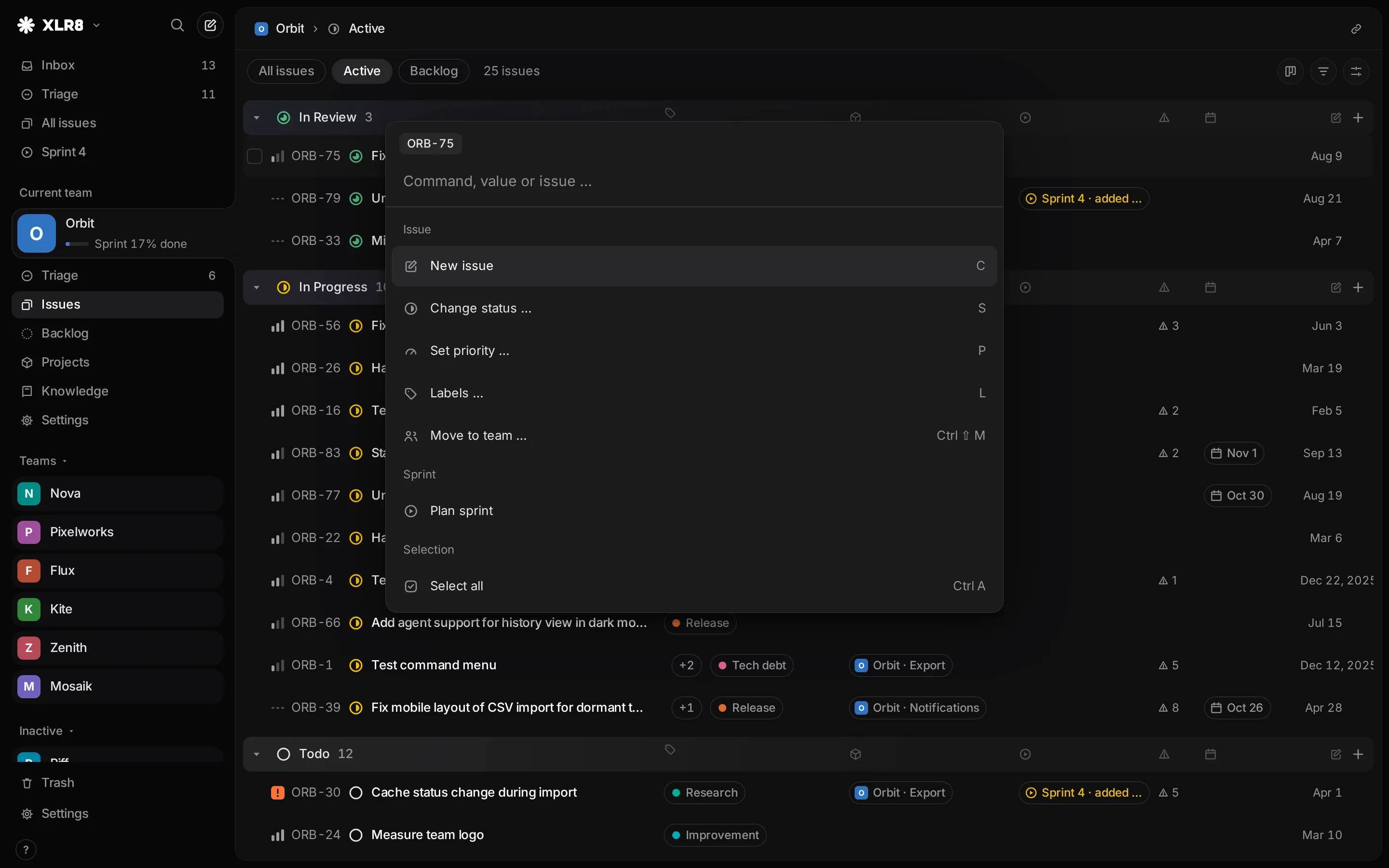
Everything XLR8 can do is in the command menu. Press CtrlCommand K, type a few letters of what you want, and press Enter. You do not need to remember a single shortcut to use the app this way, and the menu shows each action’s shortcut next to it, so you pick them up as you go.
Running an action
Section titled “Running an action”- Press CtrlCommand K, or click the XLR8 button at the top of the sidebar.
- Without typing, the menu shows the most common actions. Type to search all of them: “status”, “board”, “labels settings”.
- Press Enter to run the highlighted entry.
The menu only lists what makes sense where you are. “Toggle board / list” appears in a view that has a board, “Edit description” on an issue, “Complete sprint” while a sprint is running.
Actions act on the issues you have selected, or on the focused issue if nothing is selected. The search understands English and German words, so “priority” and “priorität” both work, whatever language the app is set to.
Values directly from the menu
Section titled “Values directly from the menu”When an issue is focused or selected, the command menu also lists values you can set right away. Type “status: in progress”, “prio urgent”, “label bug” or “due tomorrow” and the matching value shows up as one entry. Enter applies it.
The same values are available as pickers with their own shortcuts:
| Keys | Picker |
|---|---|
| S | Status |
| P | Priority |
| L | Labels |
| Shift E | Estimate |
| Shift C | Sprint |
| Shift P | Project |
| Shift D | Due date |
| CtrlCommand Shift P | Parent issue |
| CtrlCommand Shift M | Move to another team |
A few pickers have shortcuts of their own:
- Status and priority by digit. In the status picker, 1 to 9 pick the statuses in the order of the team’s workflow. In the priority picker, 0 is No priority, 1 Urgent, 2 High, 3 Medium and 4 Low. So P then 1 makes an issue urgent. Digits work as long as you have not typed anything into the picker.
- Labels stay open so you can toggle several. If you type a name that does not exist, the last entry creates that label and adds it.
- Estimate accepts any number you type, not just the listed ones.
- Due date understands words like “today”, “tomorrow”, “next week”, “in 3 days” or a date like “12.10.”, and shows a calendar.
Searching issues
Section titled “Searching issues”Press / to search issues. Before you type, the list shows the issues you opened recently. Then:
- Titles and IDs match right away, also with partial words and small typos. Type
ACME-42to find that issue. - From three characters on, hits in descriptions and comments follow a moment later, in their own sections with the matching text.
- Knowledge pages show up too, in their own section, when a team has a knowledge area.
- An old ID still finds the issue after it moved to another team; the result says “formerly ACME-42”.
While you move through the results, a preview of the highlighted issue appears beside the list. Enter opens the issue.
The command menu searches issues as well: from two typed characters on, matching issues appear below the actions.
Keys inside the menu
Section titled “Keys inside the menu”These keys work in the command menu, the search and every picker:
| Keys | Effect |
|---|---|
| Down arrow or Tab or CtrlCommand J or CtrlCommand N | next entry |
| Up arrow or Shift Tab or CtrlCommand P | previous entry |
| Enter | run or pick the highlighted entry |
| Esc | go back one level, or close |
| BackspaceDelete | with an empty search field: back to the previous level (for example in the filter menu) |
The right-click menu
Section titled “The right-click menu”Right-click an issue in a list or on the board to get the same actions as a menu: status, priority, labels and the other pickers as submenus, relations, copy link, select and delete. On an issue’s own page, the More actions button at the top right opens it. On a phone, a long press opens it. Use the arrow keys to move, Right arrow to open a submenu, Left arrow to leave it, and Enter to choose.
If you right-click an issue that is part of your selection, the menu acts on the whole selection. Otherwise it acts only on the issue you clicked.