
Appearance
XLR8 comes with its own colors and a set of well-known editor themes, and it can use any VS Code theme you like. You find all of it under Settings → Appearance. Changes take effect right away, without a reload.
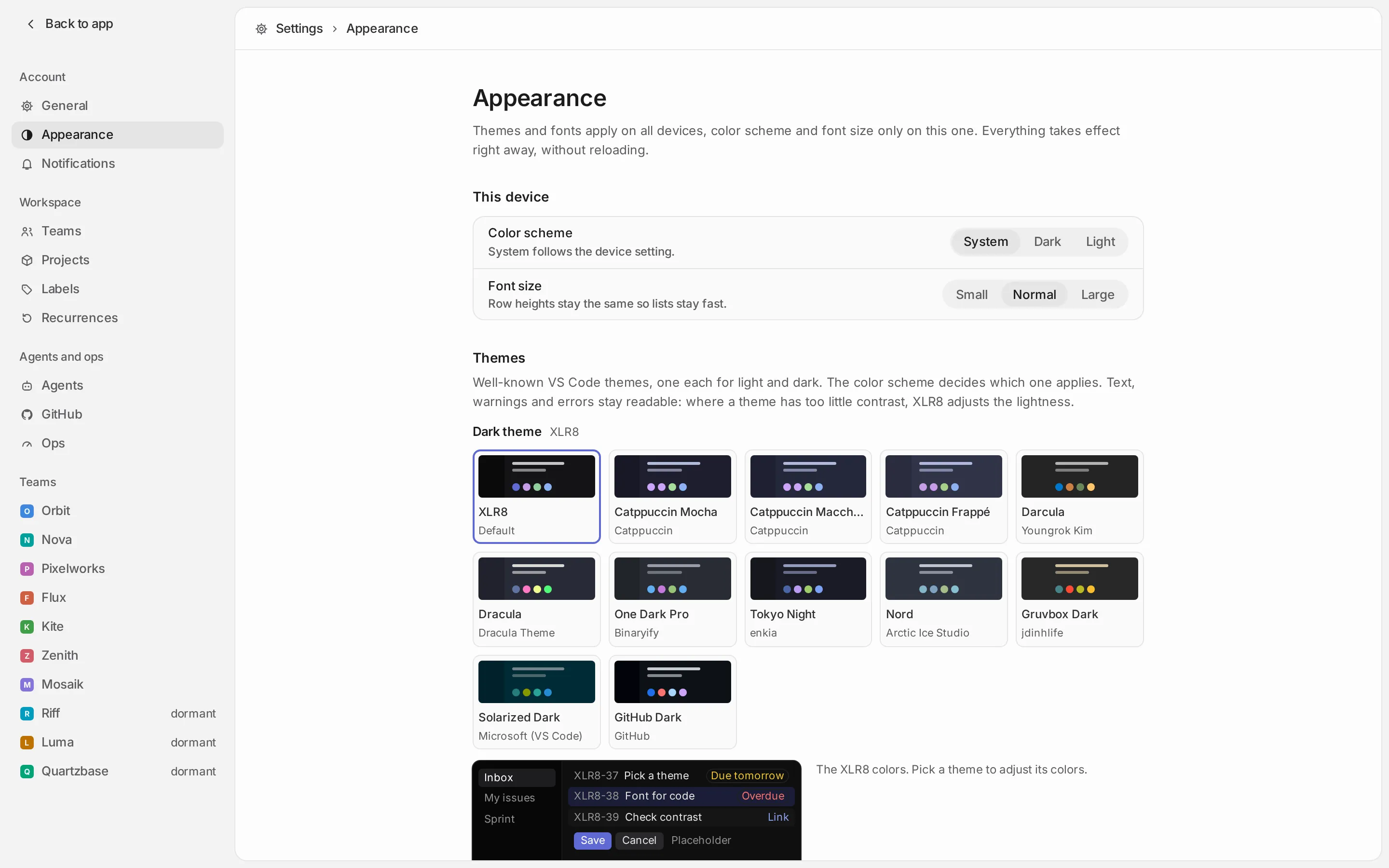
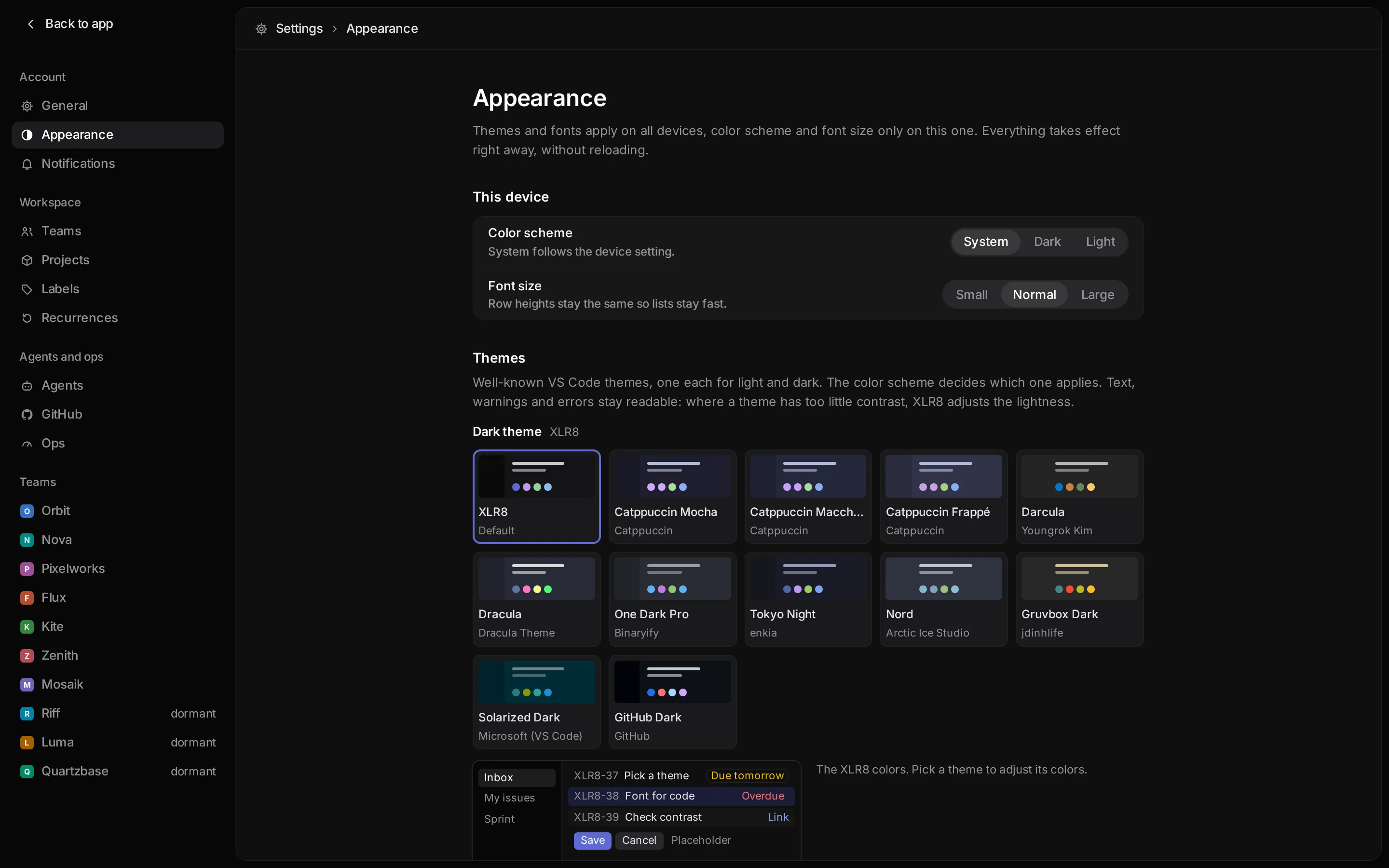
Some settings apply only to the device you are on, others to all your devices:
| Setting | Applies to |
|---|---|
| Color scheme, font size | this device |
| Themes, custom themes, theme colors, fonts | all devices |
| Sounds | this device (under Settings → General) |
Light and dark
Section titled “Light and dark”Color scheme has three choices: System follows the setting of your device, Dark and Light fix it. To flip between light and dark quickly, run Toggle light/dark from the command menu. This sets the color scheme to Dark or Light, so it no longer follows the system until you choose System again.
Themes
Section titled “Themes”You pick two themes: one for dark mode and one for light mode. The color scheme decides which one is in use. The default is XLR8, the app’s own colors.
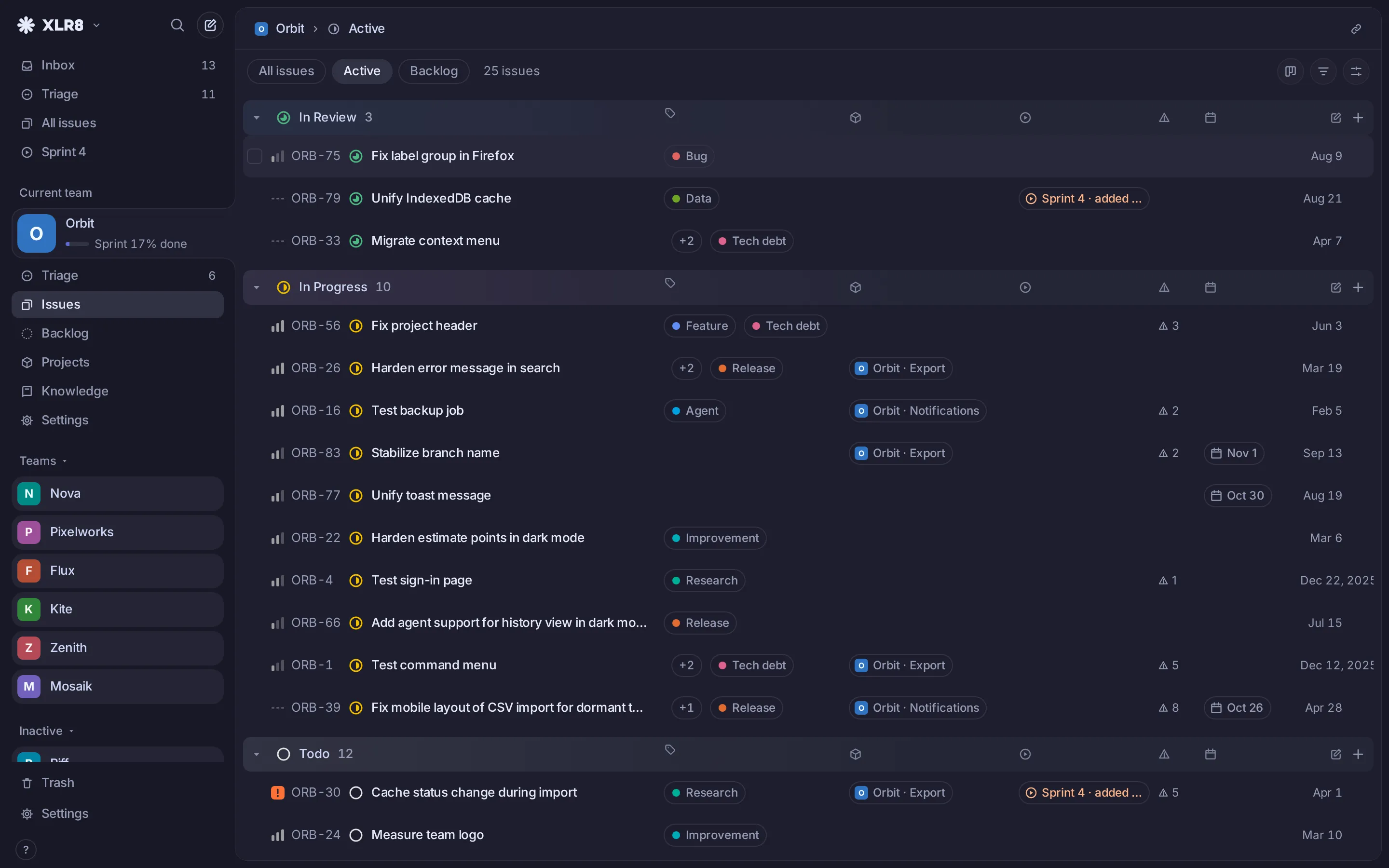
Bundled themes:
| Dark | Light |
|---|---|
| Catppuccin Mocha, Catppuccin Macchiato, Catppuccin Frappé | Catppuccin Latte |
| Darcula, Dracula, One Dark Pro, Nord | |
| Tokyo Night | Tokyo Night Light |
| Gruvbox Dark | Gruvbox Light |
| Solarized Dark | Solarized Light |
| GitHub Dark | GitHub Light |
Each theme card shows swatches of its colors, and the preview below shows how XLR8 looks with it. Themes come from editors, where some text colors are fainter than an issue tracker can afford. Where a theme has too little contrast for text, warnings or errors, XLR8 adjusts the lightness of those colors and says which ones it changed.
Adjusting colors
Section titled “Adjusting colors”For any theme other than XLR8, Adjust colors opens a list of the colors XLR8 uses, grouped into Surfaces, Lines, Text, Accent, Status and Code. Change any of them; the app updates as you go. Your changes apply to this theme only, on all devices. The reset button next to a color restores it, Reset all restores the whole theme.
Your own VS Code theme
Section titled “Your own VS Code theme”- Under Custom themes, click Add theme.
- Paste the theme’s JSON into VS Code theme (JSON), or click Choose file… to upload it. Comments and trailing commas are fine, as in VS Code.
- Check the preview and the contrast notes, and give the theme a Name.
- Click Save, or Save and use to switch to it right away.
XLR8 decides from the theme’s editor background whether it is dark or light (and falls back to the
theme’s type if the background is missing). That decides whether it appears as a choice for dark or
light mode.
Where to get the JSON:
- In a theme package, the JSON usually sits in the
themes/folder. - In VS Code, run Developer: Generate Color Theme From Current Settings to export the theme you use right now.
Custom themes can be renamed, edited and deleted in the same list. Deleting shows an Undo button.
Under Fonts you choose one font for Text and interface and one for Code. Each comes with a sample line.
- Text and interface: Inter (default), the system font, Geist, IBM Plex Sans, Source Sans 3, Open Sans, Roboto, Noto Sans, Figtree or Atkinson Hyperlegible Next.
- Code: the system font (default), JetBrains Mono, Fira Code, Geist Mono, Source Code Pro, Cascadia Code or Roboto Mono.
These fonts are served by your own XLR8 instance, not by an outside font service, and a font is only
downloaded once you select it. To use a font installed on your computer, choose Installed locally …
and type its name, for example Berkeley Mono. A local font only shows on devices that have it
installed.
Font size
Section titled “Font size”Font size offers Small, Normal and Large for this device. Row heights in lists stay the same, so lists stay fast with thousands of issues.
Sounds
Section titled “Sounds”XLR8 plays soft sounds for clicks, keys, menus, success and errors. Turn them off or change the volume under Settings → General → Sounds. This applies to the current device; dragging the volume slider plays a sample click.
Reduced motion
Section titled “Reduced motion”If your system asks for reduced motion, XLR8 keeps only short fades and leaves out sliding and springy animations. There is no separate setting in XLR8 for this; it follows the system.